
Table of Contents
- Create New Email Sequence
- Sending a Test Email from Email Sequence
- Sequence Emails
- Custom Mail From Settings
- Subscribers
- Email Sequence in Automation
An email sequence is a series of emails automatically sent to specific contacts(subscribers) when they opted in or purchase something or based on other activities. With FluentCRM you can use sequential emails when creating a Funnel.
Create New Email Sequence
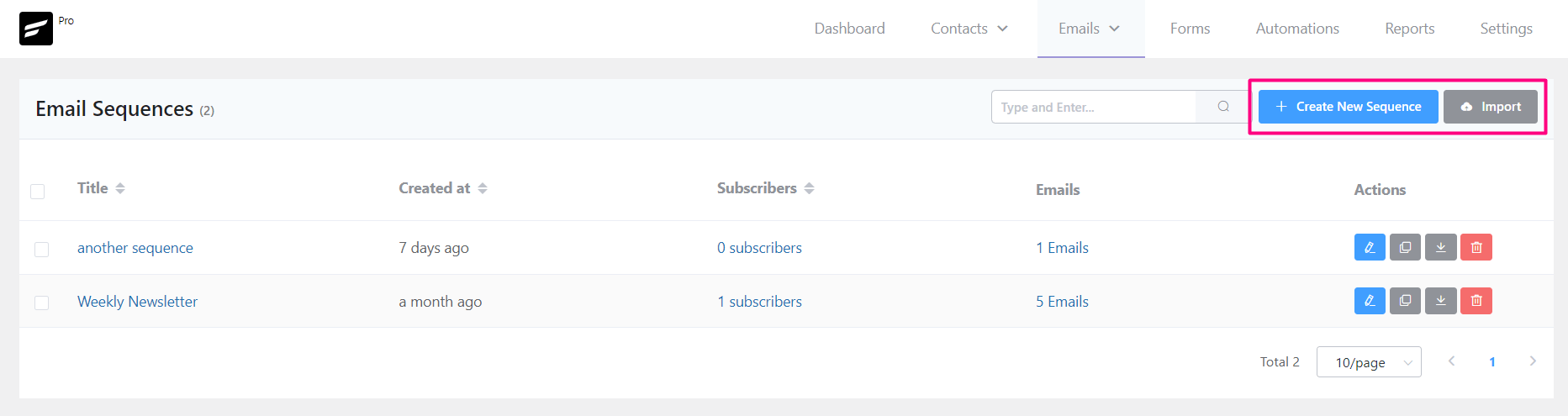
From Emails ➜ Email Sequences, To create an email sequence, Hover over Email Campaign and select Email Sequences. Now click on the +Create New Sequence button, You can also click on to the Create Your First Email Sequence if it’s the first time you are creating a sequence.
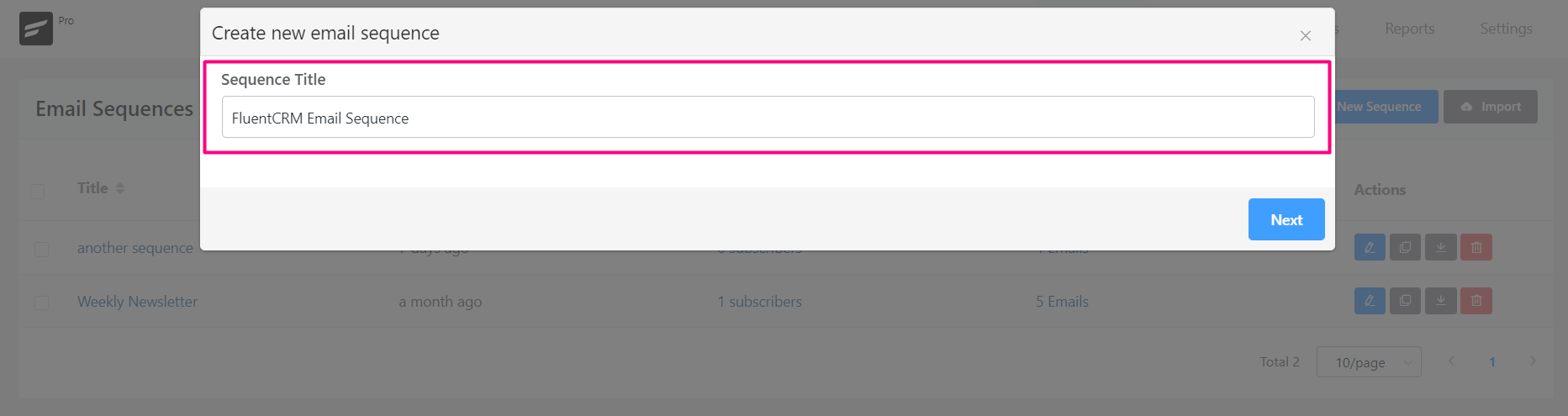
After clicking on the button a popup window will appear asking for Sequence Title as an identifier for the Email Sequence.
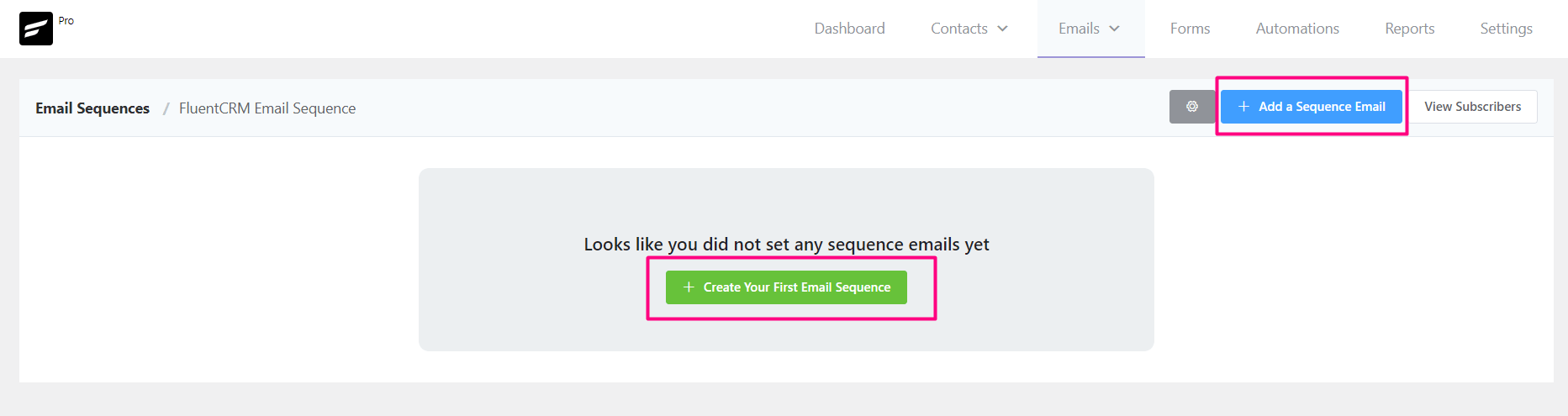
Then you will be redirected to the Sequence dashboard. Now you will be taken to a fresh dashboard where you can add one or multiple emails to the sequence.
Add New Sequence Email
Start adding email into the sequence by clicking on +Add a Sequence Email.
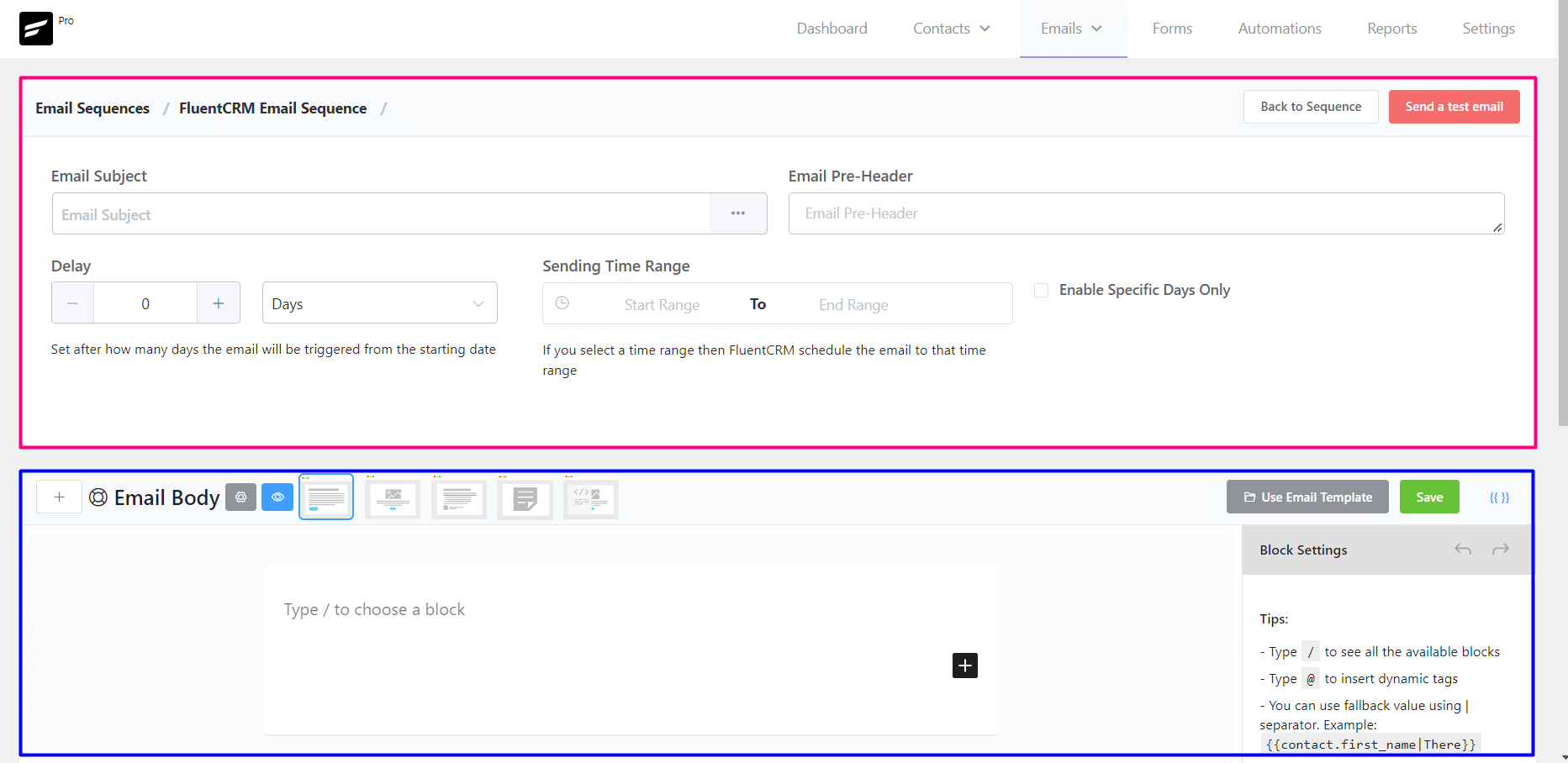
Email Sequence Subject
Email Subject: Give an appropriate email subject for the email. The email subject is a determining factor in whether it will be opened by the user or ignored.
Email Pre-Header: This is short text followed by the email subject which the user will see in the inbox. A catching and appropriate email pre-header can increase the open rate as well.
Compose Email
We have a dedicated Compose Email in FluentCRM guide where you will be able to learn in-depth details of composing emails in FluentCRM.
Import Email Template
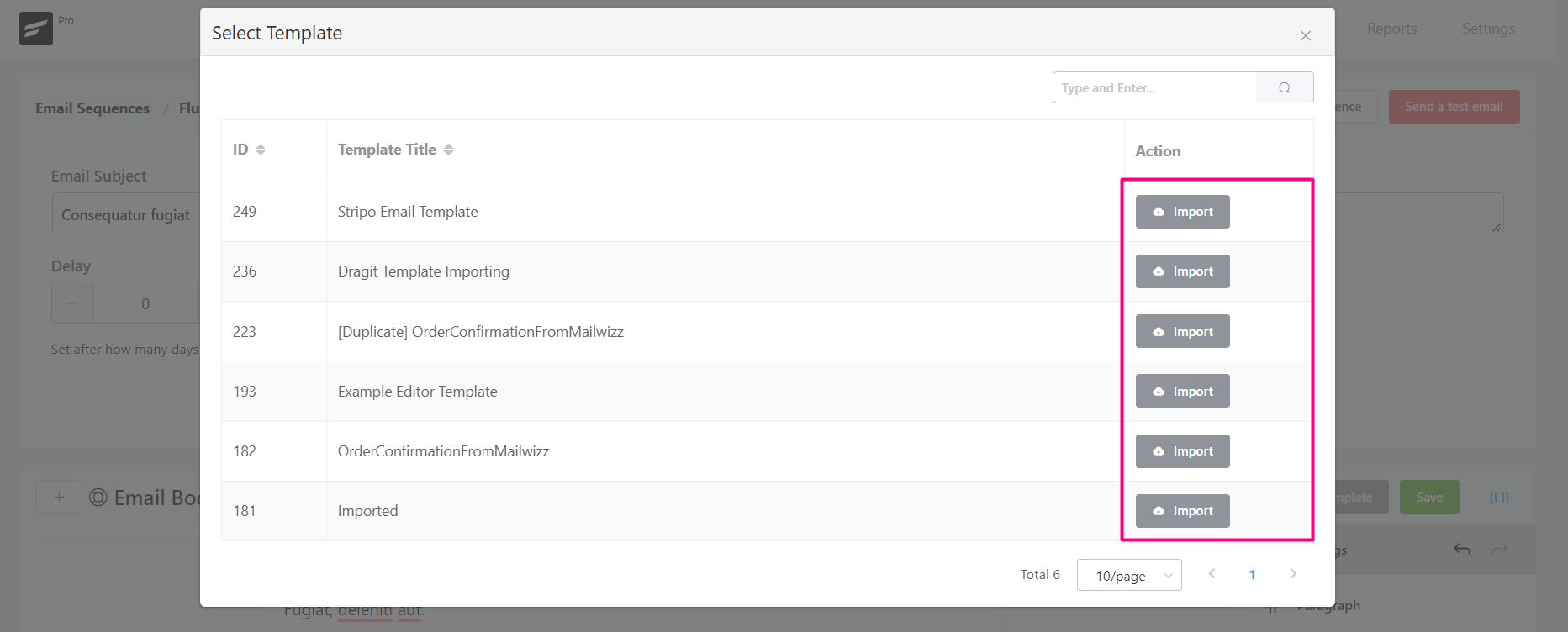
Another amazing feature of FluentCRM is that you can create Email Templates and import them later in Email Campaigns and Email Sequences. To import an email template, please click on the Use Email Template button and select your desired template and click on the Import Button.
SmartCode
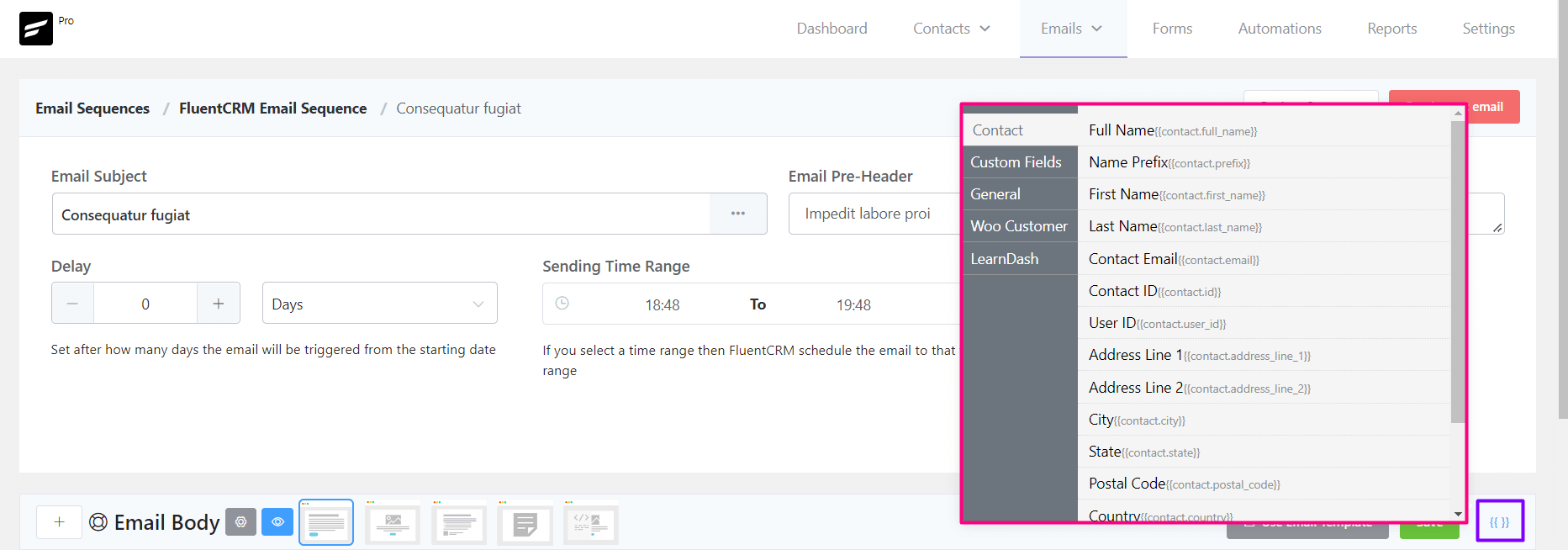
Again another amazing feature of FluentCRM is the dynamic data that can be used in the email body. To learn more about dynamic data using by SmartCode please visit SmartCode in Email Editor.
Delivery Schedule
This is the most important part of an Email Sequence. Please follow the below guides to define your settings as per your requirements.
Delay
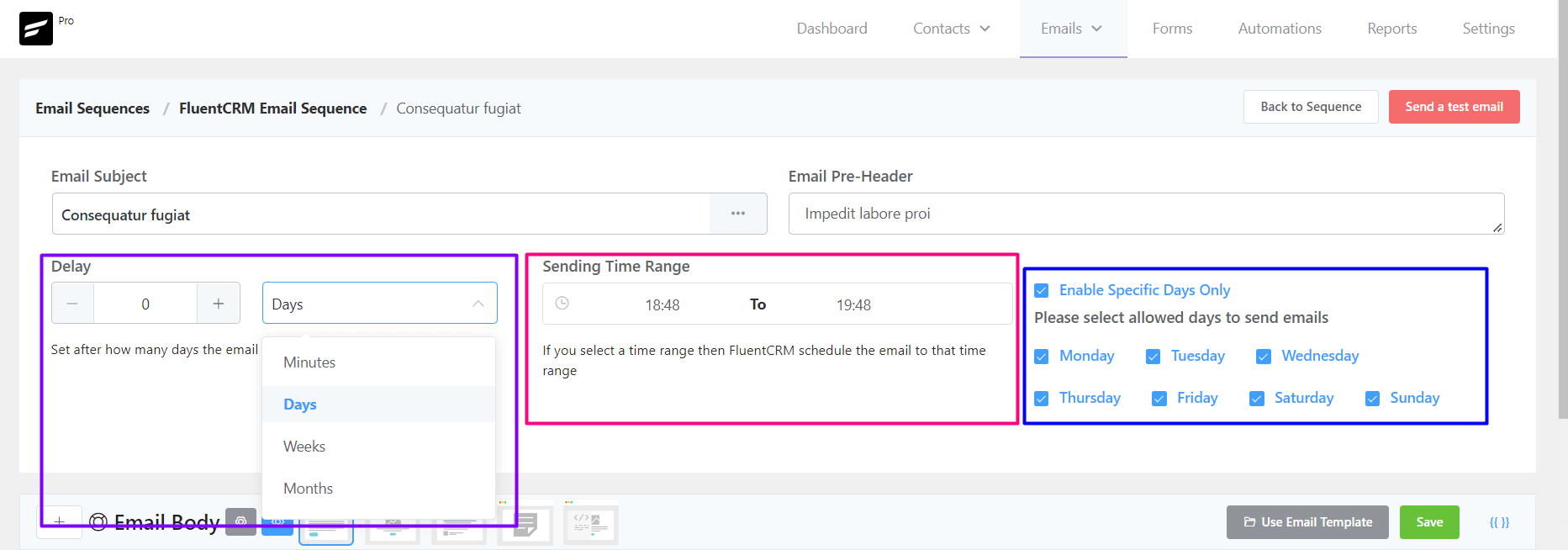
Delay is mandatory in sequential email sequences. Choose a delay for the email. If the sequence is for new subscribers and you select 1-day delay then the email will be sent to the user after one day of subscribing. The available options are Minutes, Days, Weeks, and Months. You can also interconvert the values if you do not see like Years.
Be aware of the delay with each email of a sequence. Don’t send multiple emails in one day. One week delay with each email except the welcome email is industry standard for sequential emails.
Time Range
Choose a time range to specify when the email should be sent. The best time to send an email campaign is in the morning and between 9–11 a.m.
Specific Days
If you want to send emails to specific days then you should enable and select the days that you want to send. Like you may un-check Saturday and Sunday then that email will not be sent to Saturday and Sunday.
If any automation triggered the sequence after the day you defined (for example, triggered on Monday but the sequence scheduled on Sunday) then the sequence email will be delivered on the day of the next week(Sunday).
Sending a Test Email from Email Sequence
To send a test email from Email Sequence, please click on the Send a test email button from the top right corner of the Email Sequence Settings section as shown in the below screenshot and then input the email address where you want to receive the test email and click on the Send button.
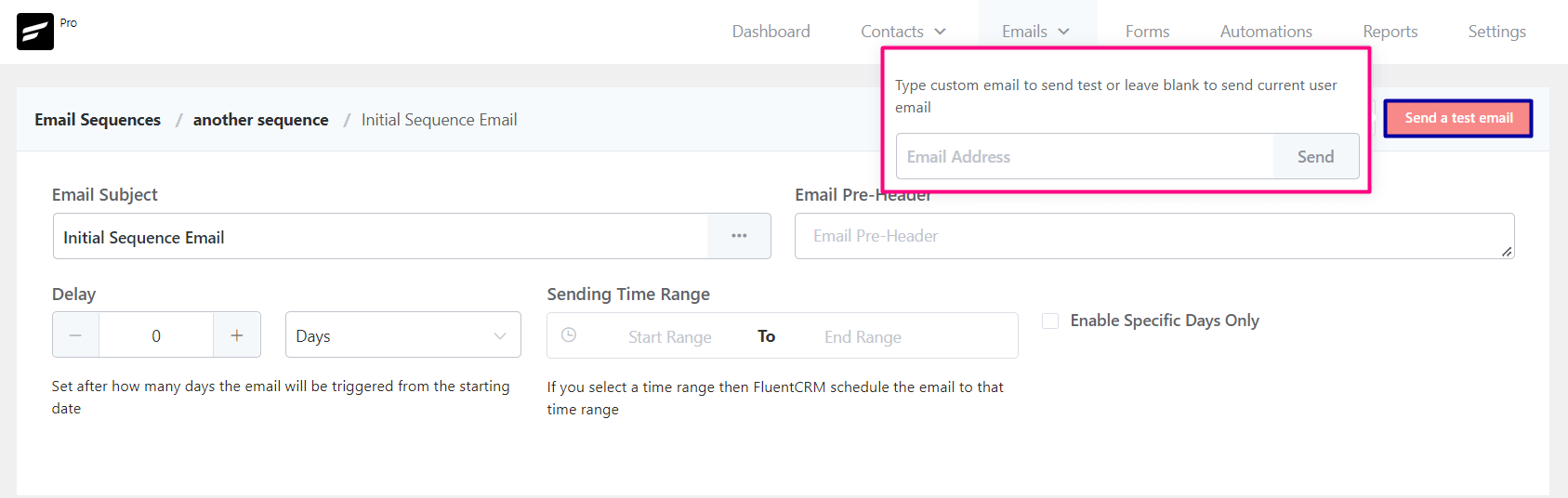
Once the email is sent successfully you will see a Success Message saying the Test email is sent successfully in the top right corner.
Sequence Emails
So now we just created our first Email of the Email Sequence. Now we can add as many emails as we want following the above guide. Below is an example screenshot of 5 Emails in the Sequence.
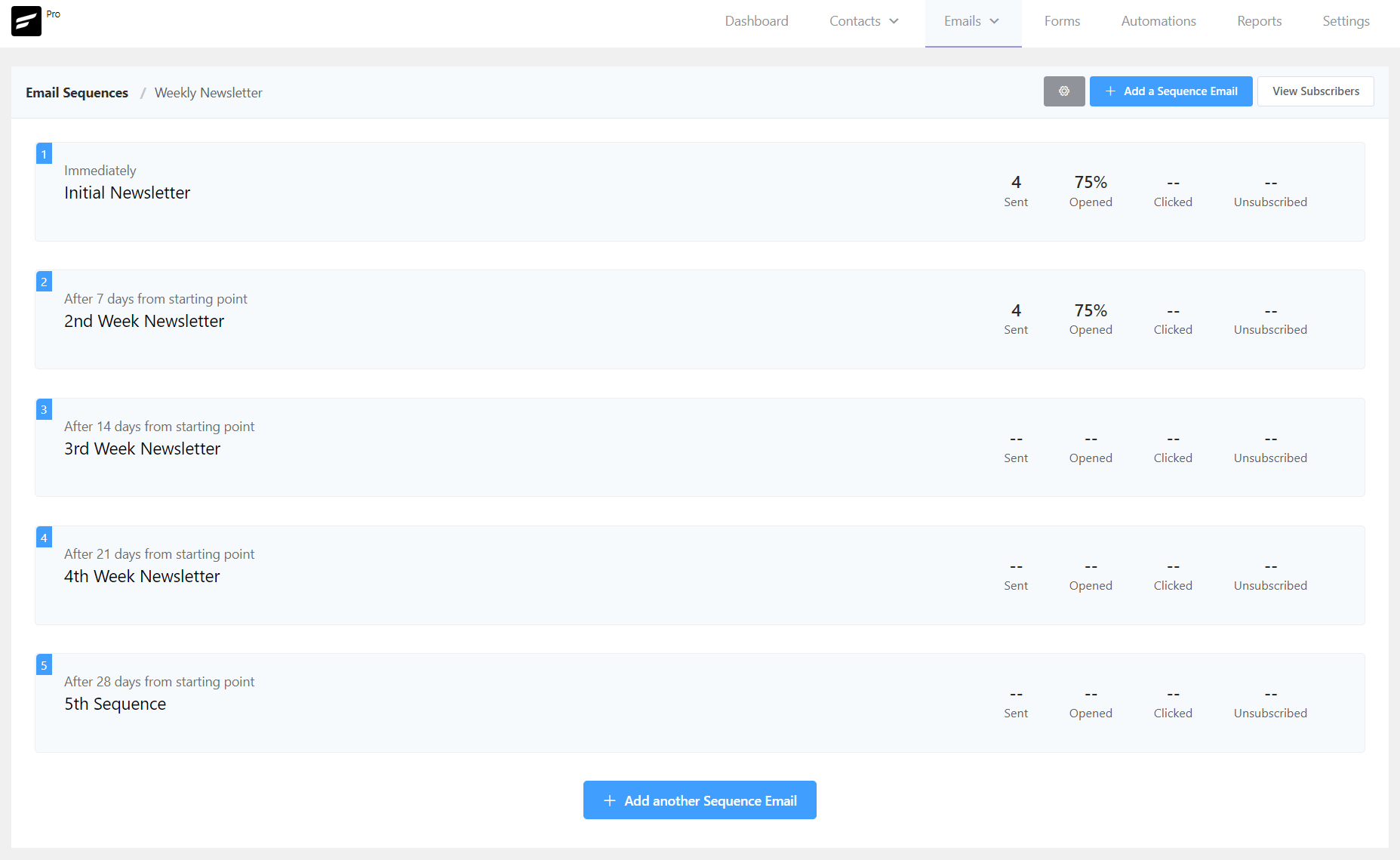
From here you will be able to see the below data properties:
- Subjects: The Email Subject for the Sequence Email.
- Schedule Delay: The delay defined or scheduled for the sequence email.
- Recipients: Total Number of recipients.
- Email Opened: Percentage of the Email Opened against the total number of recipients.
- Link Clicked: Percentage of the Link Clicked against the total number of recipients.
- Unsubscribed: Value of the Unsubs from this Sequence Email.
From this dashboard, you are also able to set custom mail from, rename the email sequence title, view all the subscribers in the sequence, and add new emails in the sequence.
Custom Mail From Settings
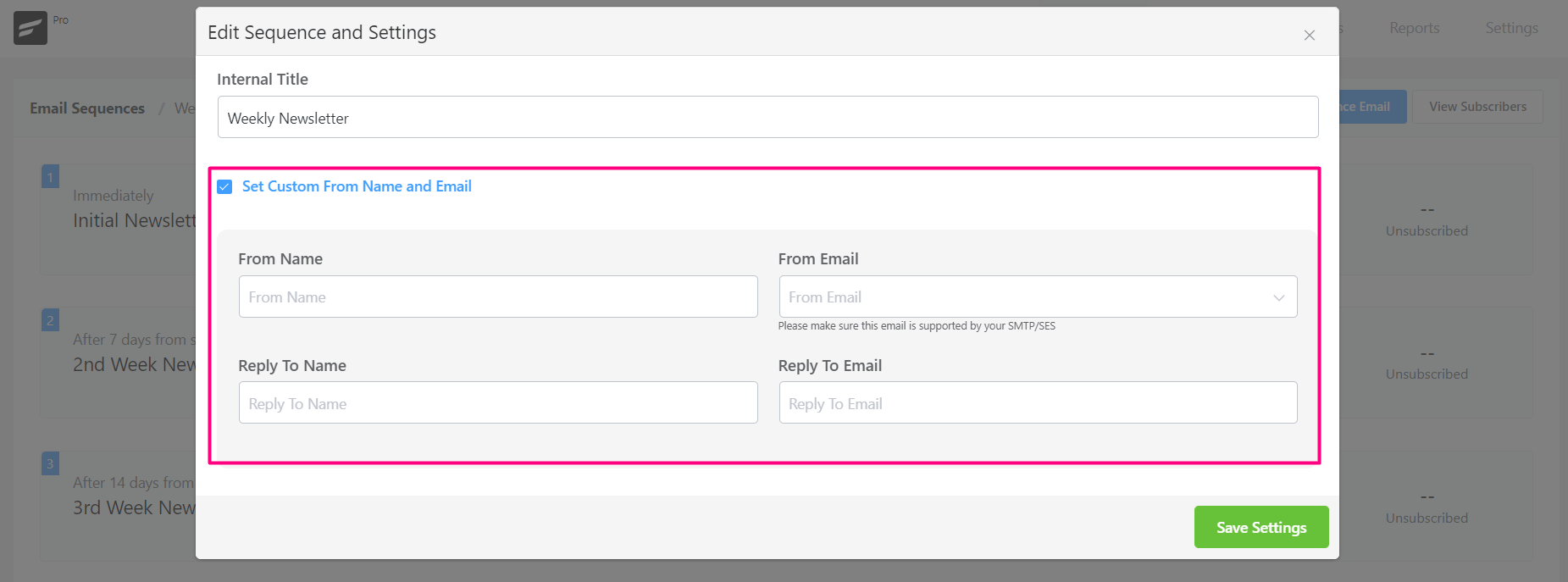
There are cases in that you want to set a custom From Email Address, From Name to be shown in the recipient’s mailbox or Email Clients. FluentCRM allows you to do so easily by clicking on the gear icon on the top section of the Sequence Emails list or dashboard. You can then enable the Set Custom From name and Email. Same as other places you will be able to set From Name, From Email (as a dropdown if configured in the Fluent STMP), Reply-To Name, and Reply-To Email.
Subscribers
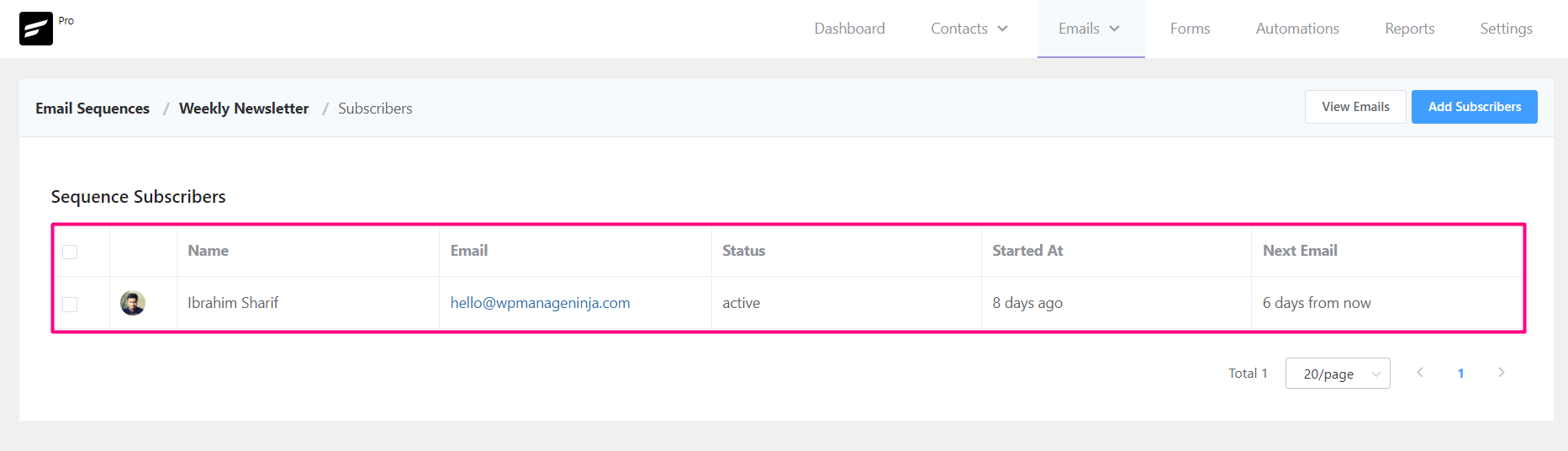
By clicking on the View Subscribers on the top section of the Sequence Emails list or dashboard, you can see all the contacts that are in receiving emails from this Email Sequence. The available overview shows:
- Name: The name of the contact that is in this Email Sequence.
- Email: The email address for the contact.
- Status: The status is either active or completed for the sequence.
- Started at: When the Sequence started for this contact.
- Next Email: The schedule of the next email in from the sequence.
You can add more contacts to the Sequence by clicking on the Add Subscribers button.
You can also select one or more contacts from the list and then Remove them From the Sequence.
Email Sequence in Automation
Once you’ve created email sequences, you can trigger them inside Automation. To add an email sequence within an automation funnel, simply hit the (+) button and choose Set Sequence Emails from the Email Actions.
So that’s all about email sequences. Go ahead and nurture your audience with any kind of email sequence!
*Tutorial: 4 Excellent Email Sequences and How to Create Them in FluentCRM.


