
Table of Contents
Webhooks let you send or receive data from any third-party service without writing code or running servers. FluentCRM comes with both incoming and outgoing webhooks.
Incoming webhook
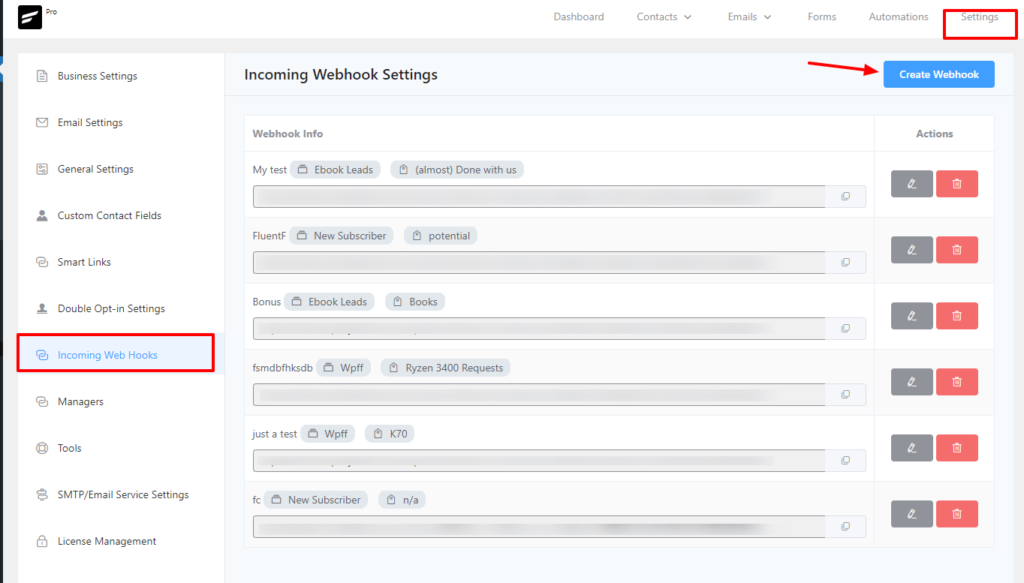
Incoming webhooks let you collect contacts automatically from an external platform or server. To create an incoming webhook, go to Settings, select WebHook Settings from the left sidebar, and click on Create Webhook.
A pop up will appear and you will need to provide the required details. Give the Hook a name at first, Choose lists and tags (optional) for the user who will subscribe through the webhook, and finally give a subscription status to the user. Mostly you want to give the Subscribed status.
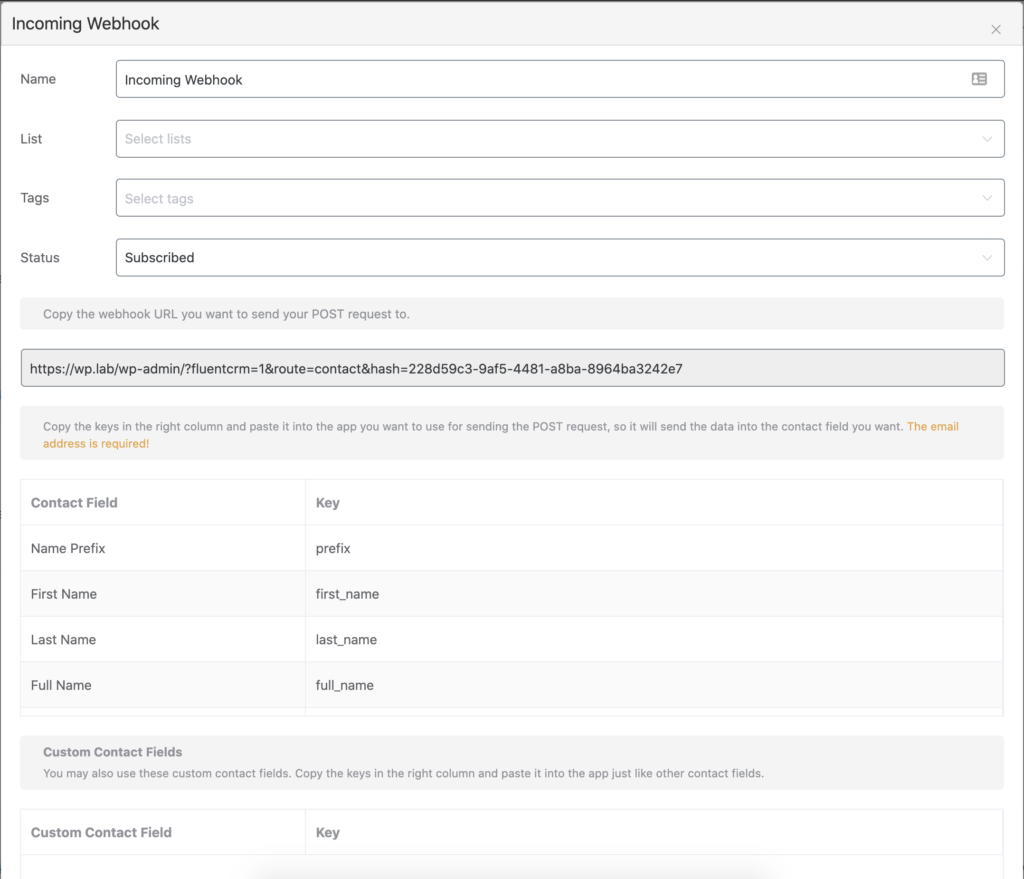
Additional Data
In your webhook source send a post request to the generated URL. Send the data as key pair formdata or JSON object. You can specify the tags, lists, and status in the webhook source and that will overwrite the defined value in the feed
| Title | Data Key | Data Type |
|---|---|---|
| Tags | tags | array ex: [1,2,3] |
| Lists | lists | array ex: [5,6,7] |
| Subscription Status | status | string ex: subscribed | pending | unsubscribed |
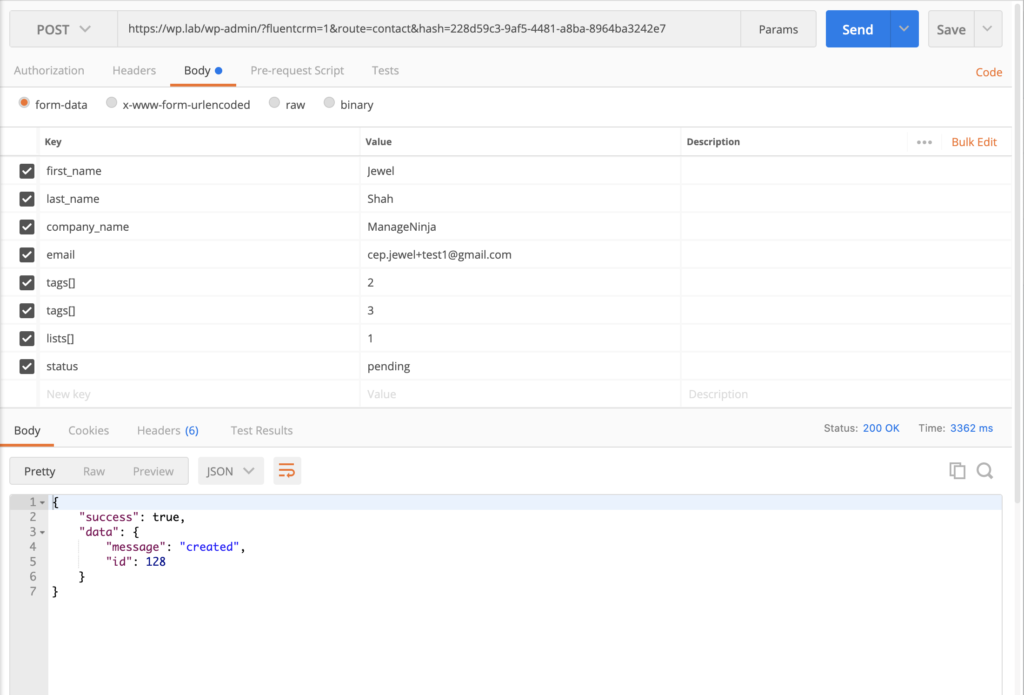
Example POST request in postman
Here is the example post request via postman
Outgoing Webhook
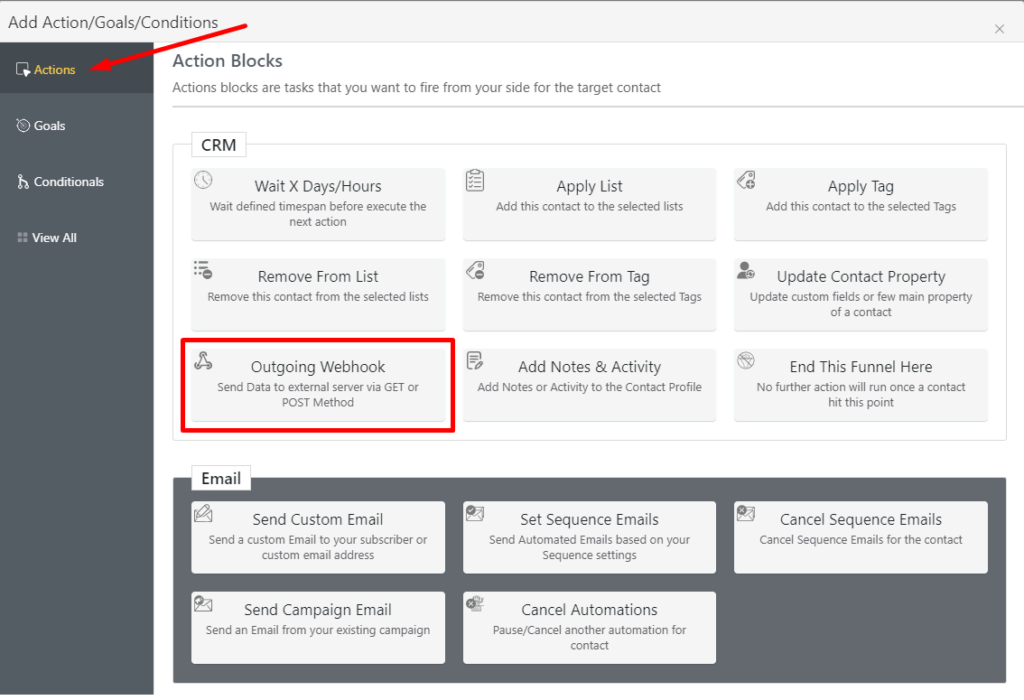
Outgoing webhooks let you send your subscriber data within the automation to external servers and platforms. To send data to external servers and platforms, go to Automations, create or open an automation funnel, and click the plus(+) button to see available actions. Then select Outgoing Webhooks from the available Actions.
Next, select your Data Send Method, you can choose both Get and Post methods. Provide your Webhook URL and Select Request Format(you can do both JSON and Form).
Choose what data you want to send(you can send Full Subscriber Data or Custom Data) and select whether you want to Request Header or not.
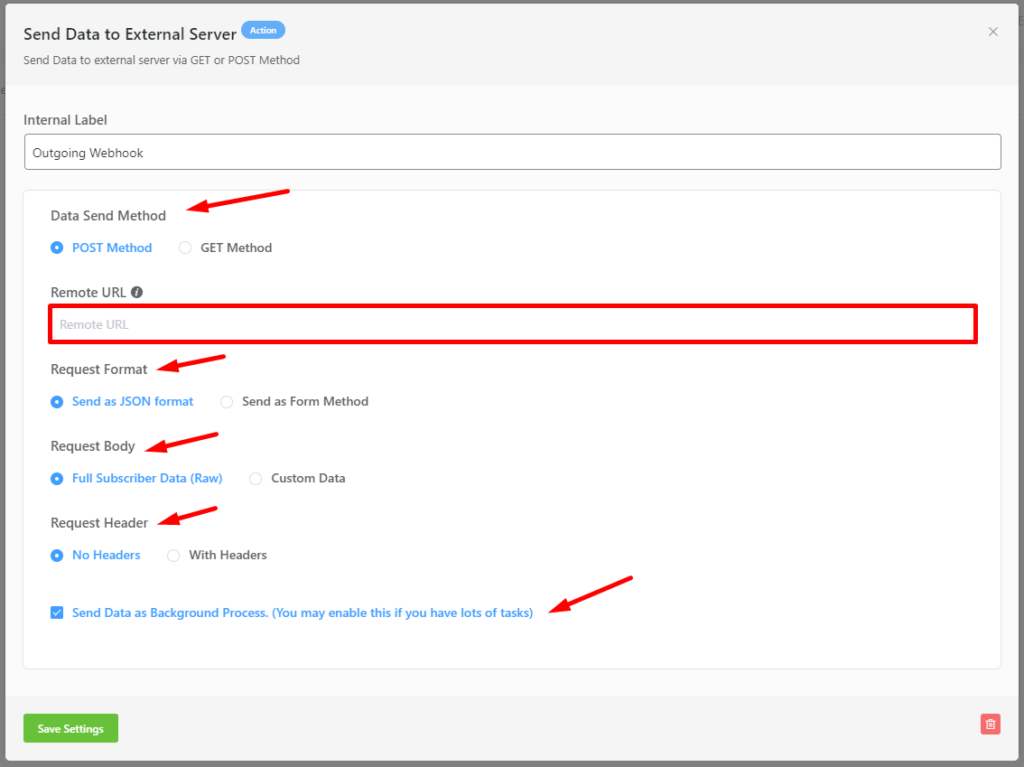
If you have a lot of tasks running, you may want to enable the option to Send Webhook Data as Background Process as well. Click Save Settings once you’re done!


