
Table of Contents
- Basic Structure:
- Usage:
- Contact’s Default Merge Codes
- Other General Codes
- WP User Codes
- Data Transformers
FluentCRM offers lots of dynamic merge codes for your email subject, the body that you can use to personalize your emails.
Basic Structure:
Merge codes are structured as {{DataGroup.Property|FallbackValue|Transformer}}
- DataGroup: FluentCRM has different types of data group. Examples: contact, contact.custom, wp etc.
- Property: Each data groups offer many data values, and you can call that the property. For example: first_name, last_name, email
- Fallback Value (Optional): This is an optional parameter. If the defined property is empty, the fallback value will be returned.
- Transformer (optional): Fluent Forms offers utility functions to transform the dynamic return value. For example: {{contact.first_name|Hi|ucfirst}} will make this first letter of the first as uppercase.
Usage:
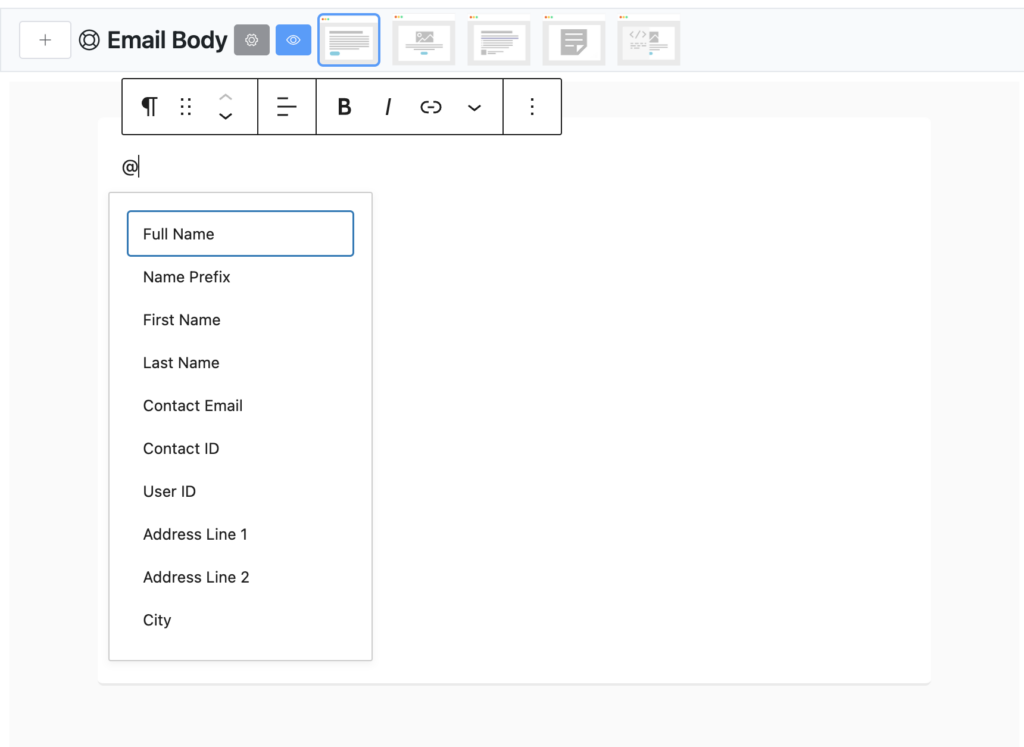
Using merge is very easy. From your email composer, just type @ and then type the name or title of the merge code and you can see all of them.
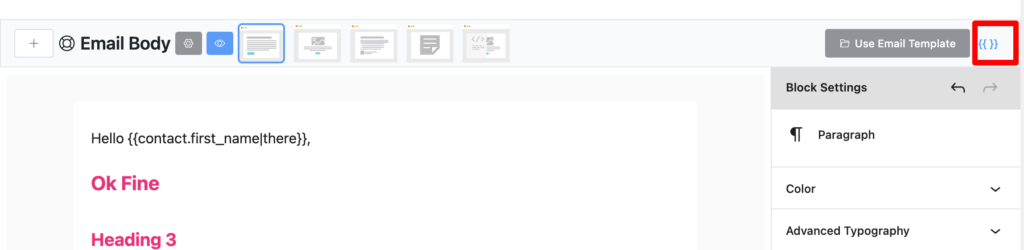
You can see all the merge codes by clicking the {{ }} icon in your email composer’s top bar.
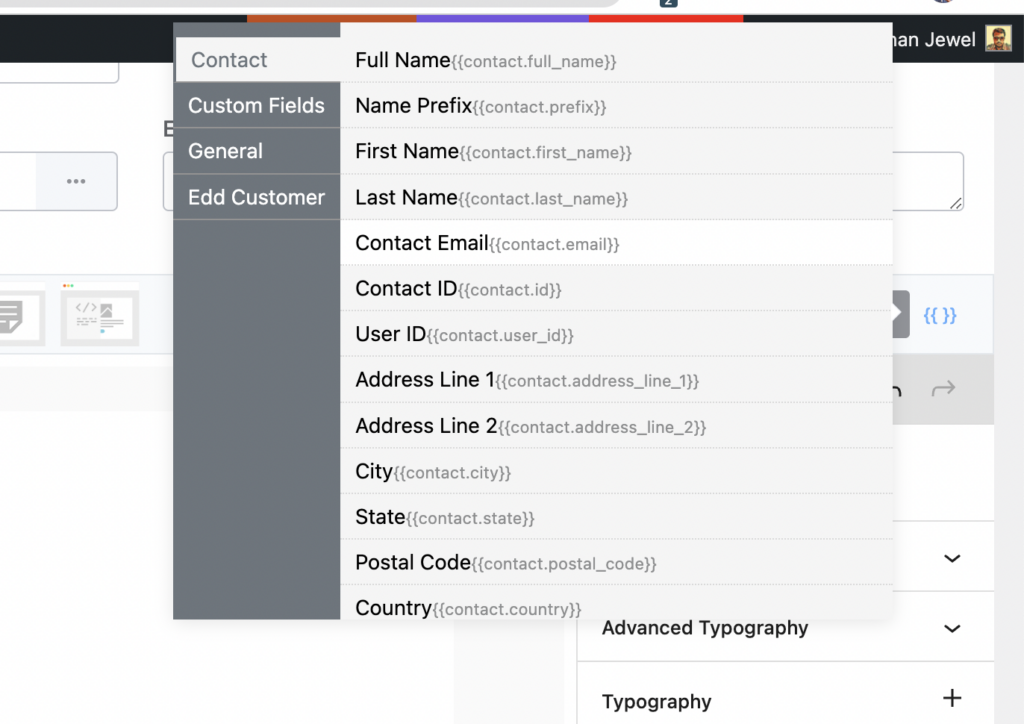
This will show a pop-up and you can copy any SmartCode you want and use it in your email body or subject.
Contact’s Default Merge Codes
| Code | Description |
|---|---|
| {{contact.full_name}} | Full name of the contact |
| {{contact.prefix}} | Name Prefix of the contact |
| {{contact.first_name}} | First Name of the contact |
| {{contact.last_name}} | Last Name of the contact |
| {{contact.email}} | Email address |
| {{contact.id}} | Contact’s unique ID (Numeric) |
| {{contact.user_id}} | Connected User ID of the contact |
| {{contact.address_line_1}} | Address Line 1 |
| {{contact.address_line_2}} | Address Line 2 |
| {{contact.city}} | Address City |
| {{contact.state}} | Address State |
| {{contact.postal_code}} | Address Postal Code |
| {{contact.country}} | Address Country |
| {{contact.phone}} | Phone Number |
| {{contact.status}} | Contact’s Status |
| {{contact.date_of_birth}} | Date of Birth |
| {{contact.custom.CUSTOM_FIELD_SLUG}} | Custom Field value of the contact. Please replace CUSTOM_FIELD_SLUG with your defined slug of the field |
Other General Codes
| Code | Description |
|---|---|
| {{crm.business_name}} | Business Name defined in FluentCRM Settings |
| {{crm.business_address}} | Business Address defined in FluentCRM Settings |
| {{wp.admin_email}} | Email Address defined in WordPress settings |
| {{wp.url}} | Your Website URL |
| {{other.date.+2 days}} | Dynamic Date Field. You can replace +2 days with your own date strings. it will return the date (WP Date Format) when parsing the data. |
| {{other.date_format.Y-m-d}} | Current date field as your own date format. Support Y-m-d date formate. |
| ##crm.unsubscribe_url## | Unsubscribe URL of the contact |
| ##crm.manage_subscription_url## | Manage Subscription page URL of the contact |
| ##web_preview_url## | Web preview Url of an email |
| {{crm.unsubscribe_html|Unsubscribe}} | This will return an unsubscribe link with HTML code and link text will be Unsubscribe. |
| ‘{{crm.manage_subscription_html|Manage Preference}} | Manage Subscription Hyperlink HTML with link text “Manage Preference” |
WP User Codes
If the contact is also your WordPress user then you can use the following merge codes in your email
| Code | Description |
|---|---|
| {{user.ANY_USER_PROPERY}} | example: get any user property from WP_User Class. Example: user_login, user_first_name etc. |
| {{user.meta.USER_META_KEY}} | access meta value of a user |
| {{user.password_reset_direct_link}} | Direct Password Reset link of a user |
Data Transformers #
Using Data Transformers you can transform / Format a dynamic value easily. Here is the list of available transformers
| Transformer | Usage | Description |
|---|---|---|
| trim | {{contact.first_name|There|trim}} | if the contact.first_name returns value and have space at first or after it will trim that. |
| ucfirst | {{contact.first_name|There|ucfirst}} / {{contact.first_name||ucfirst}} | If the contact.first_name returns the first letter lowercase, it will make it uppercase of the first letter |
| strtolower | {{contact.first_name|There|strtolower}} / {{contact.first_name||strtolower}} | It will make the all the letters as lowercase |
| strtoupper | {{contact.first_name|There|strtoupper}} / {{contact.first_name||strtoupper}} | It will make the all the letters as uppercase |
| ucwords | {{contact.full_name|There|ucwords}} / {{contact.full_name||ucwords}} | This will make the first letter of each word uppercase. |
| concat_first | {{contact.first_name||concat_first|Hello}} | if a contact’s first name is John then it will return as “Hello John” |
| concat_last | {{contact.first_last||concat_last|,}} | Sometimes you need to add “,” after the first name if the name exists. This example will return “John,” if the first name exists . If first name does not exist then nothing will return. |
| show_if | {{contact.full_name||show_if|First name exist}} | If contact’s full name exist then it will return “First name exist” |


